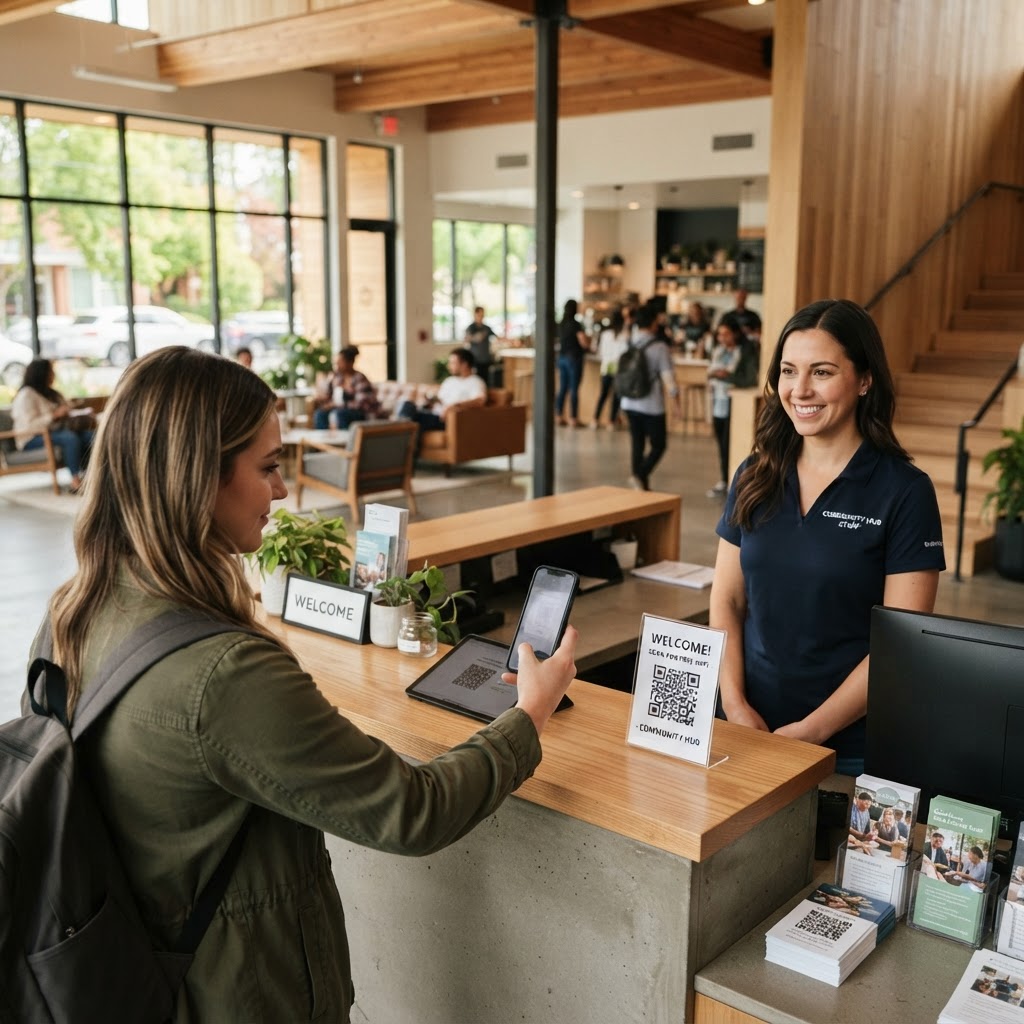
Why a wifi qr code for community center connectivity matters
Imagine a busy afternoon at your facility where dozens of residents, volunteers, and visitors are all trying to log into the internet simultaneously. Instead of staff spending time manually typing long, complex passwords into every device, a simple scan allows guests to join instantly. Utilizing our free WiFi QR Code Generator ensures that your network remains secure while removing the physical friction of manual entry, creating a more welcoming environment for your local members.
What you need before you start
Before you begin the process, ensure you have your network credentials ready. You will need your exact Network Name (SSID) as it appears in your router settings and your password, including any special characters or capitalization.
You should also decide on your security protocol, typically WPA or WPA2, which is essential for the QR code to function correctly. Having these details handy allows you to use the best WiFi QR Code Generator to produce a reliable connection method for your members.
How to create your code — step by step
- Access the Tool: Navigate to the our free WiFi QR Code Generator to begin your session.
- Enter Network Details: Carefully type in your exact SSID (Network Name) in the designated field.
- Set Security Type: Select the encryption type that matches your router, usually WPA/WPA2 or WPA3.
- Input the Password: Enter your network password into the password field, ensuring there are no leading or trailing spaces.
- Customize Appearance: Use the built-in design options to ensure the QR code matches your facility's branding or aesthetic preferences.
- Download and Test: Click the generate button to finalize your design and save the image file for printing or digital display.
How to test and deploy it
Once you have created your code, perform a live test using an iPhone or Android device that has never been connected to that network before. Simply open the native camera app, point it at the generated code, and observe if it triggers a direct connection prompt.
For deployment, place your printed signs at high-traffic areas such as the main reception desk, bulletin boards, or library corners. Blue QR Code Generator provides high-resolution files, making it easy to create posters that remain readable even from a few feet away. Always keep a secondary backup digital file in case your physical signs get damaged or removed.
Common mistakes that ruin results
- Incorrect SSID Spelling: The code is case-sensitive; if the SSID on your router has an uppercase letter, it must match perfectly in the generator.
- Wrong Security Protocol: Selecting 'None' when you have a password-protected network will result in a connection failure for users.
- Low-Resolution Printing: Printing on low-quality paper or in sizes that are too small makes it difficult for smartphone cameras to scan the code accurately.
- Over-Complicated Designs: Adding too many colors or patterns over the QR code can interfere with the scanner's ability to interpret the data structure.
Real examples
A neighborhood community center recently utilized a QR code placed inside their lobby cafe to allow parents to browse the internet while waiting for their children’s activities to end. This small change reduced front desk interruptions by over 40% during peak hours.
Another example involves a public computer lab that printed a large, framed QR code on the wall next to their workstations. Patrons can now sit down and generate yours here in seconds, ensuring their laptops are online without needing to wait for a technician to input credentials. Using the Blue QR Code Generator creates a seamless bridge between your facilities and the people who rely on them every day.
Step-by-Step Guide: How to Create a wifi qr code for community center on BlueQRCode
A dedicated WiFi QR code makes it easier for visitors, program participants, and event guests to get online without asking staff for the network name or typing a long password. Before creating one, confirm which network your community center wants visitors to use. For security, choose a guest network rather than sharing credentials for staff or administrative WiFi.
Choose the WiFi QR code type
Open BlueQRCode and select the WiFi QR code option from the available QR types. This format stores the connection details in a scan-ready format, so compatible phones can prompt users to join the network instead of requiring them to enter each detail manually.
Enter the guest network details
Type the exact WiFi network name, also called the SSID, and enter its password. Select the correct security type, such as WPA/WPA2, if requested. Check capitalization, spaces, and punctuation carefully: a small typo can prevent the scan from connecting. If the network is open, indicate that accurately rather than entering an unrelated password.
Generate and test the code
Create the QR code, then scan it with more than one phone if possible. Confirm that the device displays the expected network name and that it can connect successfully. Test from a typical visitor location, such as the lobby or activity room, to make sure the signal is available where the code will be posted.
Prepare a clear sign
Download the code and place it on a simple sign with a short instruction, such as “Scan to join Community Center Guest WiFi.” Include the network’s purpose and any relevant guest-use guidance. Keep the code large enough to scan from a comfortable distance, with clear space around its edges and strong contrast against the background.
Display it and keep it current
Post the sign where visitors naturally pause: at reception, near room schedules, in meeting spaces, or beside event check-in. Ask staff to check that the code remains readable and that the network details have not changed. If the password or SSID changes, create and distribute an updated WiFi QR code for community center visitors.
Best Practices for wifi qr code for community center
- Use a separate guest network. A visitor-facing QR code should not expose the same network used for staff computers, payment systems, security cameras, or internal records. Ask your IT provider to set up appropriate guest access and isolation.
- Make the sign welcoming and clear. Use plain language that works for first-time visitors. A brief note about who can use the network or where to get help can reduce confusion without crowding the sign.
- Choose accessible placement. Put the code at a readable height in a well-lit area, away from glare and obstructions. Consider visitors using mobility aids and people who may need to scan while seated.
- Print at a practical size. A code that looks sharp on a screen may be too small on a wall sign. Test a printed copy at the intended scanning distance, and avoid stretching or cropping the QR image.
- Review security and usage policies. Work with the person responsible for the network to set suitable guest permissions, bandwidth limits, and password-update procedures. Do not assume that a QR code itself protects a network; it simply makes the connection details easier to access.
Common Mistakes to Avoid
- Entering the wrong network name or password. SSIDs and passwords are case-sensitive and may include spaces or symbols. Verify the details with the network administrator and test the generated code before printing multiple signs.
- Sharing staff WiFi credentials with the public. A convenient connection should not come at the expense of sensitive systems. Use a designated guest network with permissions appropriate for visitors and community programs.
- Placing the sign where scanning is difficult. Dim lighting, reflective covers, tiny print, and busy backgrounds can make a code hard to scan. Keep the design high-contrast and test it in the actual location.
- Forgetting to replace outdated signs. A password change can leave printed codes unusable. Assign someone to update signs promptly and remove old copies from rooms, flyers, and event materials.
Real-World Use Cases
Classes and workshops
Participants in computer lessons, cooking classes, arts programs, or job-search workshops may need internet access to follow instructions, research, or use online materials. A WiFi QR code for community center classrooms saves time at the start of a session and lets instructors focus on the program rather than repeating connection details.
Public meetings and neighborhood events
Residents attending town halls, local planning sessions, resource fairs, or community celebrations can scan a posted code to access the guest network. This can be especially helpful when guests need to view digital agendas, complete forms, or share event information with others.
Libraries and resource areas
Visitors using a community center’s reading room, computer area, or benefits-navigation services may use personal devices to access online resources. Posting a clearly labeled guest WiFi code nearby offers a simple connection option while staff remain available to assist visitors who need help.
Room rentals and partner organizations
When nonprofits, support groups, or local clubs reserve a meeting room, staff can display the same guest-network code for each booking. This provides a consistent welcome for visiting facilitators and attendees. If different rooms use separate networks, label each code clearly so guests connect to the right one.
Make Community Center WiFi Easier to Access
A well-tested WiFi QR code can make the arrival experience smoother for people attending programs, meetings, and events. Pair the code with a secure guest network, accessible signage, and a simple process for updating it when network details change. With BlueQRCode, you can create a QR code without signing up, and your code has no watermark and never expires.
Create Your Free wifi qr code for community center
No sign-up. No watermark. Never expires.
Generate Free QR Code →