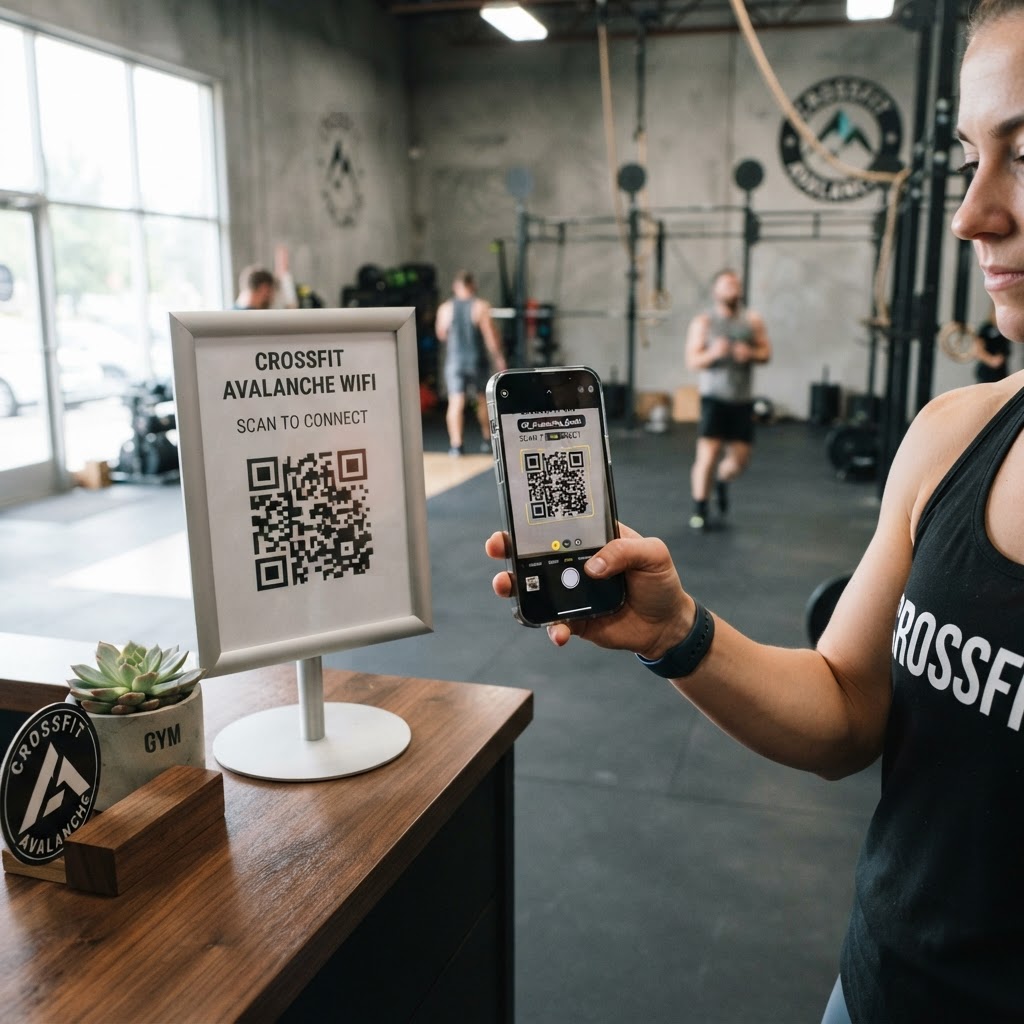
Why a WiFi QR code for CrossFit gym setups matters
High-intensity interval training requires focus, and nothing breaks that rhythm faster than struggling to connect to the gym's network. When you provide a dedicated scanning station at your front desk, you save your staff from repeating the same password dozens of times daily.
A seamless connection creates a professional atmosphere that encourages members to log their workouts directly in your facility. You can also leverage this digital touchpoint to direct users to your class schedule or booking page immediately after they gain connectivity. If you manage multiple wellness-focused spaces, you can easily adapt this process using our WiFi QR Code guide for Pilates studios to streamline connectivity across all your locations.
What you need before you start
Before you begin, ensure you have your exact network credentials ready for input. This includes the precise Network Name (SSID) and your current password, as even a minor capitalization error will prevent guests from connecting.
You should also have a clear idea of where you plan to display the code. High-traffic areas like the entrance, check-in kiosk, or the transition area between the lobby and the workout floor are ideal for maximum visibility.
How to create a WiFi QR code for CrossFit gym access — step by step
- Visit the generator: Navigate to our free WiFi QR Code Generator to start your project.
- Enter your SSID: Input the exact name of your gym's WiFi network into the Network Name field.
- Provide your password: Type in your WiFi password carefully, ensuring you match the case-sensitivity of your router settings.
- Select security type: Choose the appropriate security protocol (usually WPA/WPA2/WPA3) from the dropdown menu to ensure compatibility.
- Generate the code: Click the button to create your code; you can also use Blue QR Code Generator's WiFi QR codes tool to customize the visual appearance if needed.
- Download and save: Once you are satisfied with the design, download the final image file to your device for printing.
How to test and deploy it
Never print and display a code without testing it first on at least two different mobile devices. Use both an iPhone and an Android phone to ensure the scanning process is smooth and the automatic connection prompt triggers correctly.
Once verified, print the code on high-quality cardstock to ensure the pixels remain crisp and scannable. You can generate yours in seconds and frame it near the entrance to keep the connection process fast and professional for every athlete.
Common mistakes that ruin results
- Ignoring contrast: Using light-colored ink on a light background makes the code unreadable for most standard smartphone cameras.
- Formatting errors: Entering a hidden character or a trailing space in your password field will result in a connection failure for every guest.
- Small sizing: Printing the code too small forces people to stand too close to the wall, creating bottlenecks near your front desk.
- Neglecting security: Using an "Open" network without a password creates a significant security risk for your gym's internal devices and local data.
Real examples
One busy gym placed a laminated printout on every squat rack, allowing members to instantly connect and start their music playlists without needing to ask the staff for the WiFi key. This reduced front desk interruptions by over 40% during peak evening hours.
Another facility used the Blue QR Code Generator to create a branded poster that combined their WiFi access with a link to their community Facebook group. By the time the user connects to the internet, they are already prompted to join the club’s private member forum.
When you are ready to modernize your gym's connectivity, generate yours in seconds to give your members the fast, reliable access they expect.