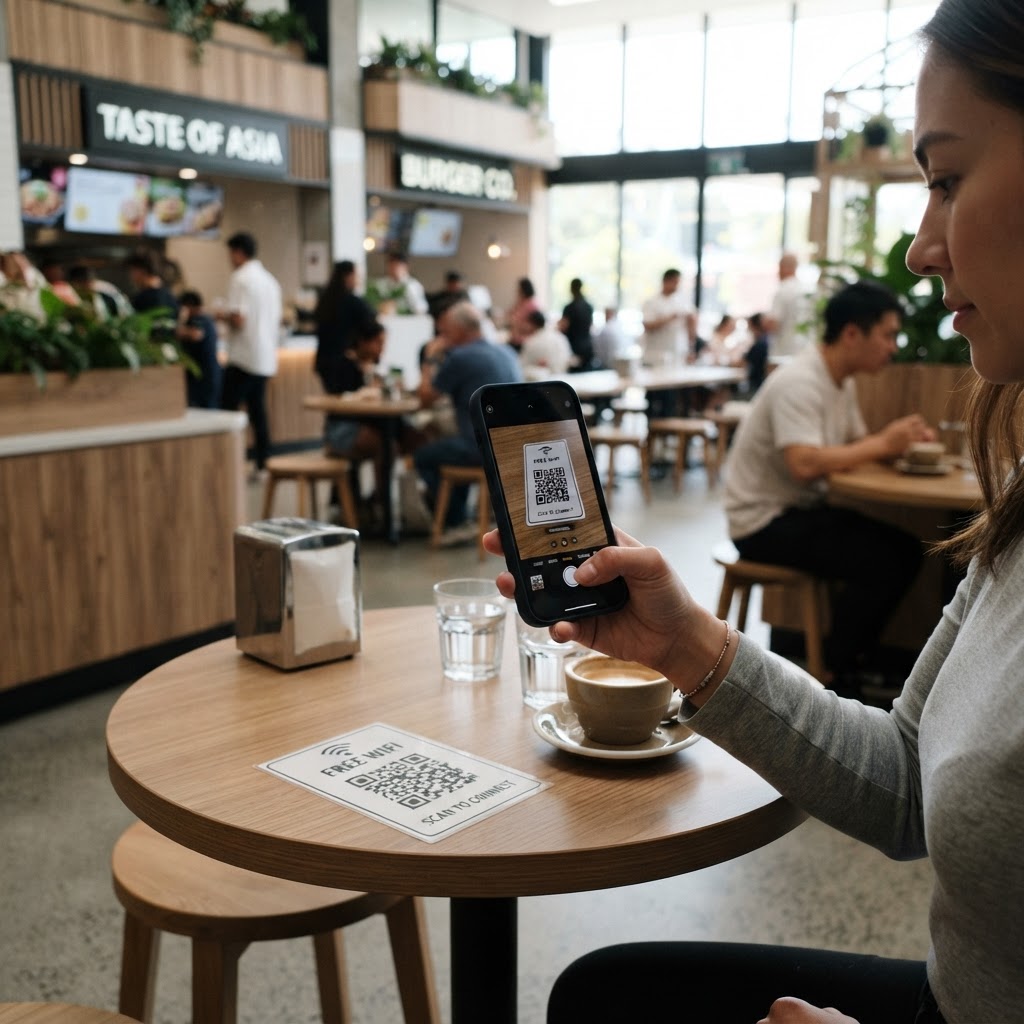
Why a WiFi QR Code for Food Court Areas Matters
A food court is a high-volume environment where visitors often switch between different merchants or take breaks while waiting for their orders. When a customer has to interrupt a busy cashier to ask for the WiFi password, it creates a bottleneck that slows down service for everyone in line.
By placing a scannable code at tables or near signage, you empower guests to self-serve their internet access. This reduces staff frustration and allows patrons to stay connected during their entire stay, which directly correlates to longer dwell times and higher customer satisfaction scores. You can generate yours here to streamline the experience for your visitors.
What you need before you start
Before you begin, ensure you have the exact name of your network (SSID) and your current password on hand. Check if your security protocol is set to WPA, WPA2, or WPA3, as the Blue QR Code Generator needs these details to produce a functional scan.
You will also need a clean, high-resolution digital file of your venue logo if you plan to customize the code. Finally, make sure you have access to a printer or a digital signage player to display your code once it is ready.
How to create your WiFi QR code — step by step
- Open the generator: Navigate to the our free WiFi QR Code Generator to access the dashboard.
- Enter network details: Input your exact SSID (network name) and password into the provided fields, paying close attention to character casing.
- Select security mode: Use the dropdown menu to match the security settings of your router; choosing 'WPA/WPA2' is the safest bet for most public networks.
- Customize the design: Use the built-in tools of the Blue QR Code Generator to adjust the colors and frame to match your food court's branding.
- Download the code: Save the final QR code image as a PNG or SVG file to your computer or mobile device.
- Verify the scan: Use your personal phone to scan the generated code to ensure it auto-connects to your test network before printing hundreds of copies.
How to test and deploy it
Placement is everything when you use Blue QR Code Generator's WiFi QR codes tool in a busy dining area. Avoid putting your QR codes behind glass or in areas with poor lighting, as glare can prevent the camera from focusing properly.
The best strategy is to place them on table stickers or laminate them into the menu holders. Before you commit to a mass print, test the code from various distances and angles to ensure your guests can scan it effortlessly from across the table.
Common mistakes that ruin results
- Incorrect SSID: Forgetting to capitalize a letter in the network name will result in a connection error, so double-check every character.
- Low Contrast: Using light-colored QR codes on a white background makes them invisible to scanners; always use high-contrast dark foregrounds.
- Busy Backgrounds: Placing your code on a surface with too much text or pattern confuses the scanner, so keep the area around the code clear.
- Small Print Size: Printing the code too small makes it nearly impossible for a smartphone to focus from a standing distance.
Real examples of usage
A mall manager can print the code on a large floor-standing sign at the entrance of the main dining plaza to capture guest traffic immediately. This approach removes the need for visitors to look for small signs on individual tables.
Alternatively, a smaller independent kiosk within the food court can place a small, branded QR code sticker directly on the payment counter. This allows customers to log on while they are waiting for their food preparation to finish. For more hospitality use cases, you can also see how we help businesses create WiFi codes for rooftop bars.