Why This Topic Matters
Google Review QR codes make it fast and frictionless for customers to leave reviews by opening the review form directly on their phones.
That ease increases the volume of reviews, which improves local SEO and helps businesses attract more customers.
What Is a Google Review QR Code?
A Google Review QR code is a URL QR code that encodes a direct link to your Google Business review form.
When scanned, it opens the review form on the customer's phone — skipping all the steps of searching for your business on Google.
The link format is: https://search.google.com/local/writereview?placeid=YOUR_PLACE_ID
Key Points
- A Google Review QR code links directly to your Google Business review form.
- Removing friction (scan → tap) increases the likelihood customers will leave reviews.
- More positive reviews boost local SEO and visibility in Google Maps and search.
Step-by-Step Guide
Follow these steps to create and deploy a Google Review QR code quickly.
- Step 1: Find your Google Place ID by searching your business on Google Maps and clicking Share.
- Step 2: Go to blueqrcode.com and select Google Review QR Code.
- Step 3: Enter your Google Place ID or your full review link.
- Step 4: Click Generate and download your QR code as PNG.
No account required. No watermark. Free forever.
How to Create a Google Review QR Code for Free
Use the steps above to generate a free QR code at blueqrcode.com.
Best Practices
Place and present your QR code where customers are most likely to scan it, and make the call-to-action clear and friendly.
- Ask for reviews at peak satisfaction moments (e.g., at payment or after service).
- Receipts
- Table tents
- Follow-up emails
- Business cards
- Create a separate QR code for each physical location using its unique Place ID.
Where to Place Your Google Review QR Code
At the Point of Payment
The highest-converting placement. When a customer is paying they are often in a positive state of mind.
A small card or printed sign with your QR code and the message "Enjoyed your experience? Leave us a review" captures reviews at peak satisfaction.
On Printed Receipts
Add your Google Review QR code to receipts so customers can review later when they have a moment.
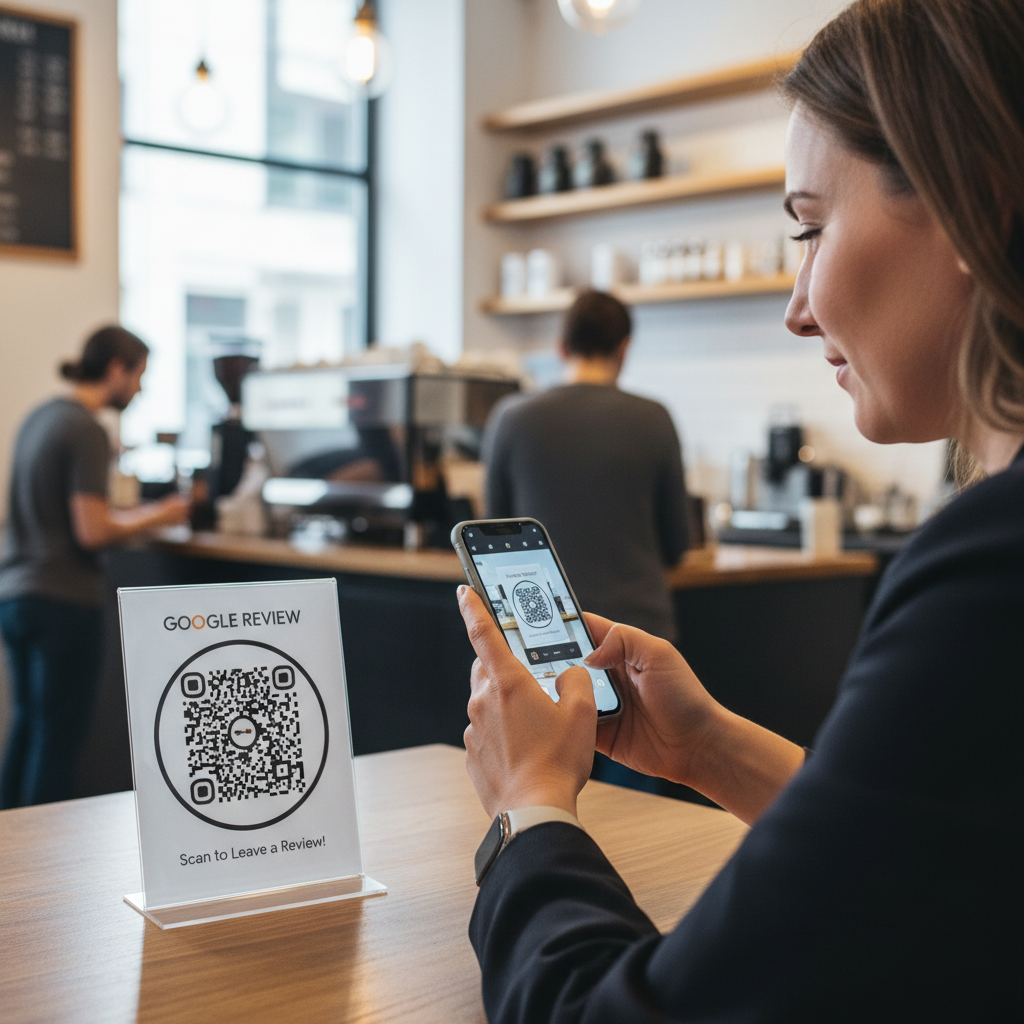
On Table Tents (Restaurants and Cafes)
While customers wait for their order or the bill, they scan and review.
High dwell time equals higher conversion.
In Follow-Up Emails
Embed your Google Review QR code in post-visit email follow-ups with a brief thank-you and call-to-action.
On Business Cards
Add a small QR code on the back of your business card so contacts can leave a review when they get home.
Google Review QR Code by Business Type
Restaurants
Place QR codes on the most visible customer touchpoints to maximize scans.
- Tables
- Menus
- Receipts
Train staff to mention "feel free to scan and review us."
A 10% review conversion on 50 daily customers equals roughly 5 new reviews per day.
Hair Salons and Beauty Salons
Place the QR code at the checkout mirror or on a card given with the receipt so satisfied clients can review immediately.
Gyms and Fitness Studios
Display the QR code in changing rooms, near the entrance, and on membership cards to capture members' reviews.
Dentists and Medical Practices
Place the QR code at reception so patients can review immediately after their appointment.
Plumbers and Electricians
Leave a small card with the QR code after each job.
Tradespeople with 50+ reviews dominate local search for emergency services.
Real Estate Agents
Ask clients to review after a successful transaction.
A QR code on your closing gift card makes the ask natural and effortless.
Common Mistakes to Avoid
Be intentional when generating and placing QR codes to avoid wasted effort and incorrect links.
- Using the same QR code for multiple locations — each Google Business location has a different Place ID.
- Assuming Place IDs never change — place IDs are permanent for established businesses, but changes can occur after significant edits.
- Failing to ask at the right moment — waiting too long to request a review reduces conversion.
Frequently Asked Questions
Do Google Review QR codes expire?
No. The QR code links directly to your Google Business profile. As long as your business is active on Google, the link works.
Can I use the same QR code for multiple locations?
No. Each Google Business location has a different Place ID. Create a separate QR code for each location.
What if my Google Place ID changes?
Place IDs are permanent for established businesses. If it changes (rare, usually after a significant edit), generate a new QR code for free at blueqrcode.com.
Conclusion
Google Review QR codes are a simple, free way to increase review volume and improve local search visibility.
Generate your free Google Review QR code at blueqrcode.com — no account, no watermark, instant PNG download.
Step-by-Step Guide: How to Create a google review qr code complete guide on BlueQRCode
-
Find your Google Place ID
Before you generate a QR code, get the direct review link for your business. Use the Google Place ID Finder or the Google Maps Platform to locate your Place ID, then build the review URL like this:
https://search.google.com/local/writereview?placeid=YOUR_PLACE_ID. This is the link that opens the Google review dialog directly on most devices. -
Open BlueQRCode and choose the URL QR type
Go to BlueQRCode, select the URL QR type (one of the 13 QR types available). Paste the Google review URL you created into the URL field. BlueQRCode is free, requires no sign-up, adds no watermark, and the codes never expire—making it ideal for long-term use.
-
Customize appearance and size
Customize colors, add a logo if you want, and set the size. Keep high contrast between foreground and background for reliable scanning. If you add a logo, choose a higher error correction level (if offered) so the code remains scannable even with the logo overlay.
-
Download and test your QR code
Download the QR code in your preferred format (PNG or SVG). Test it on multiple devices—Android and iPhone—and from different distances and lighting conditions to ensure the Google review dialog opens correctly. If it doesn't, double-check the Place ID in the URL.
-
Deploy with a clear call-to-action
Place the QR on receipts, table tents, flyers, posters, or inside emails with a short instruction like “Leave us a review → Scan here.” Encourage customers to write a quick sentence about their experience and avoid incentivizing reviews (this violates Google policies).
Best Practices for google review qr code complete guide
- Use a direct write-review URL (the Place ID link) so customers land straight on the review dialog — faster is better for conversions.
- Keep the QR code visible and accompanied by a clear CTA: tell customers what to do and why their feedback matters (e.g., “Help us improve — leave a quick review”).
- Maintain strong contrast and an adequate quiet zone (margin) around the code. Light-colored foregrounds or busy backgrounds reduce scan success.
- Test at print size — for handheld scanning, aim for a minimum of about 2–3 cm square for short-range items like receipts, and 6–10 cm for posters and displays.
- Comply with Google’s policies: never buy or solicit fake reviews, and don’t offer incentives in exchange for a review.
Common Mistakes to Avoid
- Linking to a generic search result — Sending users to a search query or your homepage adds friction. Use the direct Place ID write-review URL so customers can start writing immediately.
- Poor contrast or too-small codes — Dark backgrounds with dark codes or very small print sizes lead to failed scans. Always test prints before distributing.
- Not testing across devices — Some links behave differently on iOS vs Android. Test on multiple phones and in different browsers to ensure consistency.
- Ignoring policy and context — Asking for positive reviews only or offering rewards can violate Google policies and damage trust; invite honest feedback instead.
📚 Related guides
Real-World Use Cases
-
Restaurants & Cafés
Place a google review qr code complete guide on table tents, receipts, or checkout counters. Diners can quickly leave feedback about service or a favorite dish while the experience is fresh.
-
Retail Stores
Add the QR to printed receipts or packaging inserts. After a purchase, customers can scan and leave a review about product quality or in-store service, helping build your online reputation.
-
Healthcare & Professional Services
Medical offices, dentists, and salons can include the QR on appointment follow-ups or business cards so patients and clients can share timely reviews about their visit.
-
Hospitality & Automotive
Hotels, B&Bs, and auto repair shops can put the QR code in rooms, guest folders, or invoices to capture impressions when guests or customers are most likely to leave feedback.
Create Your Free google review qr code complete guide
No sign-up. No watermark. Never expires.
Generate Free QR Code →