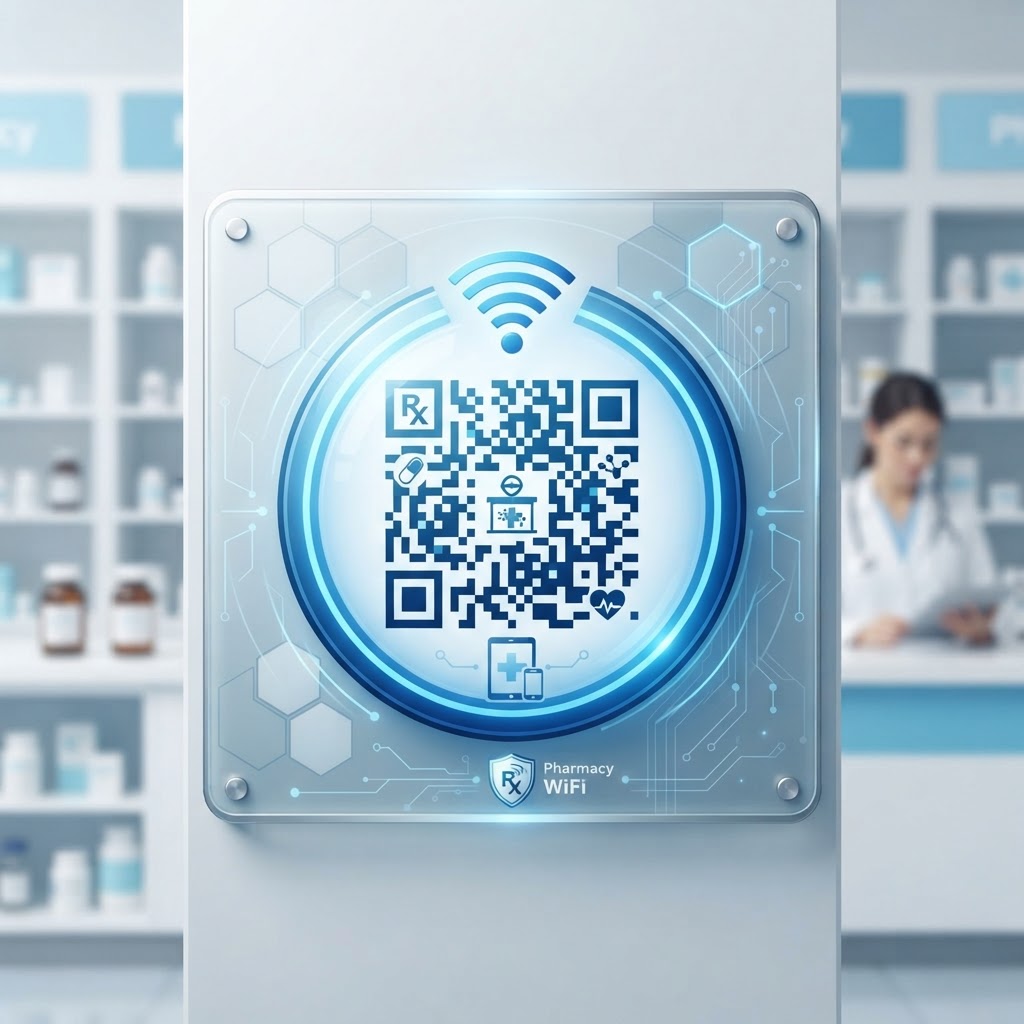
Why a WiFi QR Code for Pharmacy Matters
Imagine a patient waiting twenty minutes for a complex prescription to be compounded. They likely need to check insurance details, look up medication information, or simply pass the time on their phone. Without easy access to the internet, they are tethered to cellular data which might be spotty indoors. Implementing a wifi qr code for pharmacy settings removes this friction, turning an agonizing wait into a productive or relaxing moment.
What You Need Before You Start
Before you begin, ensure you have the exact name of your network, also known as the SSID, written down exactly as it appears. You will also need your current network password, which is usually found on the back of your router or in your administration settings. Finally, you can use our free WiFi QR Code Generator to combine these credentials into a scannable format instantly.
Try it now: Generate a free Wifi Qr Code For Pharmacy →
How to Create Your WiFi QR Code — Step by Step
- Prepare your details: Double-check the spelling of your network name and password to prevent connection errors for your patients.
- Access the generator: Navigate to the Blue QR Code Generator interface to start the setup process.
- Input network credentials: Enter your SSID and password into the designated fields provided by the tool.
- Select security protocol: Choose the appropriate encryption type, typically WPA2 or WPA3, to ensure your network remains protected.
- Generate the code: Click the button to create your image and preview how it will look on a digital screen or printed signage.
- Download and test: Save the file to your device so you can print it for your pharmacy counter or waiting area.
How to Test and Deploy It
Always perform a physical test before hanging signs in your shop. Use a smartphone that has never joined the network to ensure the connection triggers automatically upon scanning. You can generate yours in seconds and print the resulting image on high-quality cardstock. Place the print at eye level near the main waiting area or on the checkout counter where it is highly visible.
Common Mistakes That Ruin Results
- Incorrect SSID: Users often capitalize or misspell the network name, which makes the QR code non-functional for guest devices.
- Poor Contrast: Printing a light-colored QR code on a light background prevents scanners from recognizing the pattern.
- Ignoring Security Settings: Selecting the wrong network protocol will cause a connection timeout even if the password is correct.
- Low Resolution: Blurry or pixelated codes are difficult for standard smartphone cameras to read, leading to customer frustration.
Real Examples
A busy community pharmacy might place a framed sign on the wall near the consultation window, allowing patients to connect while they wait for their pharmacist. Alternatively, a health-focused retail pharmacy could include the QR code on the back of store receipts to encourage users to join their loyalty program while connected. In both scenarios, the Blue QR Code Generator provides a professional solution that keeps guests connected without manual password entry.
No watermark · No expiry · Works on all phones
Your QR code is ready in under 30 seconds.
Generate Free QR Code →Step-by-Step Guide: How to Create a wifi qr code for pharmacy on BlueQRCode
-
Step 1 — Open the WiFi QR generator on BlueQRCode
Go to BlueQRCode and choose the "WiFi" QR type. The WiFi option is designed for fast, one-scan connections: it encodes the network SSID, authentication type (WEP/WPA/WPA2/WPA3 or none), password, and whether the network is hidden. This is the starting point for generating a reliable wifi qr code for pharmacy use.
-
Step 2 — Enter your pharmacy network details
Carefully type the SSID (network name) exactly as it appears on your router or access point. Choose the correct encryption method (typically WPA/WPA2/WPA3 for modern networks) and enter the password. If you're creating a guest network for customers, use the guest SSID and guest password — don’t encode staff or POS network credentials. If your guest network is hidden, check the “hidden” box.
-
Step 3 — Add optional labeling and customize (if desired)
BlueQRCode lets you preview the code immediately. Add a descriptive label or title in your internal records (for example, “Pharmacy Guest WiFi – Front Store”). You can also adjust output format (PNG, SVG) and size. For pharmacy signage, choose a high-resolution image and consider an SVG for crisp printing at large sizes.
-
Step 4 — Generate and test the wifi qr code
Click “Generate” to create the wifi qr code for pharmacy. Before printing or posting it, test the code with multiple devices (iOS, Android) and different phones to ensure it automatically connects without entering credentials. Verify that the code connects to the intended guest network and that it does not inadvertently expose access to restricted systems like POS or patient data networks.
-
Step 5 — Deploy securely around your pharmacy
Print the QR code at recommended sizes (at least 3–4 cm for close-range scans; larger for scanning from a distance) and place it where customers can easily reach it: the service counter, waiting area, consultation room doorway, and drive-through window. Include a short instruction line such as “Scan to connect to Pharmacy Guest WiFi” and a note about any time limits or acceptable use policies. Replace or reprint if the password changes.
Best Practices for wifi qr code for pharmacy
- Use a dedicated guest network: Separate customer WiFi from staff and clinical systems. This prevents accidental access to prescription management, POS, or patient records from a guest device.
- Prefer WPA2/WPA3 encryption: Avoid open (no-password) networks. WPA2 or WPA3 provides stronger protection and should be used when encoding a wifi qr code for pharmacy guests.
- Limit bandwidth and session time: Configure guest VLANs with bandwidth caps and automatic session timeouts to preserve performance for staff systems and discourage long-term misuse by visitors.
- Include clear signage and instructions: Add a short line under the QR code explaining where it connects, any usage rules, and who to ask for help. Example: “Pharmacy Guest WiFi — scan to connect. For help, ask at the counter.”
- Rotate passwords periodically and reissue codes: When you change the guest network password, immediately generate and replace the wifi qr code for pharmacy to prevent access issues and stale signage.
Common Mistakes to Avoid
- Encoding the wrong SSID or password: Typos are the most common reason a QR fails. Always copy/paste the SSID and password where possible and test with multiple devices before printing.
- Using the same network for guests and staff/POS: Don’t expose sensitive systems. A single network increases the risk of unauthorized access and complicates compliance (e.g., HIPAA for pharmacies handling patient data).
- Poor print quality or placement: Small or low-contrast prints, or codes placed behind glass with glare, can be unscannable. Use high-resolution files and place codes at eye level in well-lit, non-reflective positions.
- Not testing across platforms: Some phones handle QR WiFi linking differently. Always test on iOS and Android to ensure a consistent, one-tap connect experience for your customers.
Real-World Use Cases
-
Waiting area customer connectivity
Pharmacies can place a wifi qr code for pharmacy waiting-room posters so customers waiting for prescriptions can quickly connect and browse or check email. This improves customer satisfaction and reduces perceived wait times.
-
Drive-through and curbside pickup
At drive-through windows or curbside pickup points, a visible wifi QR lets customers connect to a portal for digital signatures, payment, or to receive real-time updates about prescription readiness without leaving their vehicle.
-
Telehealth or consultation rooms
Private consultation areas often host short telehealth calls or medication counseling sessions. A wifi qr code for pharmacy visitors in these rooms enables patients to connect to a guest network for video calls while keeping the main clinical network secure.
-
In-store kiosks and tablets
Tablets for price checking, vaccination registration, or surveys can be connected via WiFi using QR codes. Use device management and separate SSIDs for kiosks; if tablets occasionally need reconfiguration, a staff-facing wifi qr code speeds setup.
Create Your Free wifi qr code for pharmacy
No sign-up. No watermark. Never expires.
Generate Free QR Code →