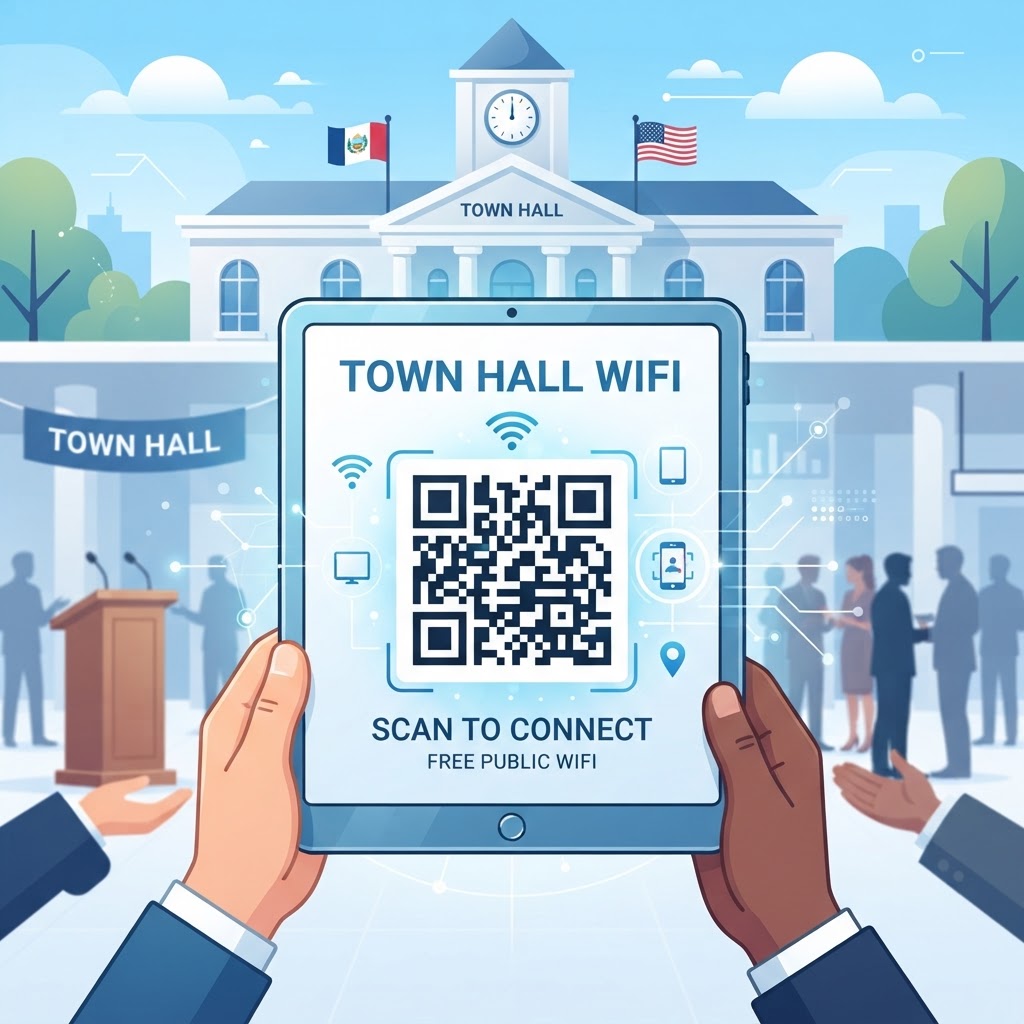
Why implementing a WiFi QR code for town hall matters
Imagine a local resident waiting in the lobby to renew their vehicle registration or apply for a building permit. They have an urgent email to send but no mobile data signal, and the constant questions about the network password distract your busy administrative team. A dedicated access point solves this by allowing guests to connect instantly without needing to type in complex, long-form character strings.
By utilizing our free WiFi QR Code Generator, you can ensure that your public network remains secure while remaining accessible. It transforms the waiting experience from a point of frustration into an opportunity for productivity.
What you need before you start
Before you jump into the generation process, ensure you have your network details clearly noted. You will need the exact Network Name (SSID) as it appears on devices, the network password, and the encryption type (usually WPA/WPA2/WPA3).
Double-check that the network you intend to share is a public or guest-accessible network. It is best practice to keep internal municipal systems isolated from public traffic. Once you have these three pieces of data, you can generate yours in seconds using our platform.
How to create your WiFi QR code for town hall — step by step
- Access the Tool: Navigate to the Blue QR Code Generator platform to begin the setup process.
- Enter the Network Name: Input the exact SSID of the public WiFi network intended for your visitors.
- Provide the Password: Enter the network password carefully to avoid connectivity issues during the scan.
- Select Security Protocol: Choose the appropriate encryption method from the dropdown menu to match your router settings.
- Customize Your Design: Adjust the QR code color or style to ensure it matches the professional aesthetic of your building.
- Download and Print: Once you are satisfied with the result, save the image as a high-resolution file and print it for public display.
How to test and deploy it
Always test the printed code with multiple types of mobile devices before hanging it in the lobby. Use both iOS and Android phones to ensure that the scanning software recognizes the credentials instantly and triggers the connection dialog box.
Placement is crucial for accessibility. A well-placed sign at the reception desk or on a community bulletin board will see higher engagement than one hidden in a corner. When you use Blue QR Code Generator, you get high-fidelity exports that print clearly, making the scanning process faster for everyone.
Common mistakes that ruin results
- Incorrect SSID Spelling: Even a minor typo in the network name will prevent a user from connecting to the signal.
- Low Contrast Prints: Printing a light-colored QR code on a light background makes it impossible for most phone cameras to focus.
- Wrong Security Type: Mismatched WPA protocols often cause a connectivity error message, confusing the end-user.
- Cluttered Designs: Overcomplicating the QR code with too much branding can obscure the readable data modules.
Real examples of usage
In a medium-sized municipality, the main service hall uses a framed 5x7 inch printout located on the information kiosk. This simple addition has drastically reduced the number of times residents ask staff for help with internet access.
Another example involves a local library branch that includes the code on their monthly event flyers. When visitors arrive, they can immediately access the digital event calendar via the free guest WiFi. It is an efficient way to integrate digital information with physical spaces. You can use Blue QR Code Generator's WiFi QR codes tool to create similar signage for your specific needs.
Step-by-Step Guide: How to Create a wifi qr code for town hall on BlueQRCode
A wifi qr code for town hall can make it easier for residents, visitors, staff, and event attendees to get online without asking for the password. Before you create one, confirm the correct network name and password with your IT team. Then follow these steps:
Open BlueQRCode
Go to BlueQRCode and choose the WiFi QR code option from the available QR types. No account is needed, so you can get started without signing up or installing software.
Enter the town hall network details
Type the WiFi network name, also called the SSID, exactly as it appears in your network settings. Enter the password carefully and select the correct security type, such as WPA/WPA2. If the network is open, choose the appropriate open-network option instead of entering a password. Check the details with your IT administrator if you are unsure.
Generate and test the code
Create the QR code, then scan it with a phone before sharing it publicly. Confirm that the phone displays the correct network and connects successfully. Test with more than one device if possible, since menus and connection prompts can vary between phones.
Download a suitable image
Choose a clear, high-resolution format for the places where the code will appear. A print-ready image is useful for signs at entrances, reception desks, meeting rooms, and public counters. Keep a digital copy for the town hall website, event emails, or presentation screens.
Place it where visitors need it
Display the wifi qr code for town hall near the point where people are likely to look for internet access. Add a short instruction, such as “Scan to connect to guest WiFi,” and include the network name as a fallback for anyone who cannot scan. Check the sign periodically and replace it if the network credentials change.
Best Practices for wifi qr code for town hall
- Use a dedicated guest network. A public-facing QR code should connect visitors to a guest network rather than a network intended for staff systems, internal records, or administrative devices. Ask your IT team to apply suitable access controls and network separation.
- Make the sign easy to scan. Print the code at a size that works from a comfortable distance, use strong contrast, and leave clear space around its edges. Avoid placing it over a busy image or behind reflective glass.
- Explain what the code does. Label it clearly as town hall guest WiFi and provide a simple scanning instruction. This helps visitors recognize that the code is for internet access, not a payment link or a request to download an app.
- Protect network access. Share only the credentials approved for public use. If your town hall changes its guest password or network name, update the QR code and remove outdated copies from signs, brochures, and online pages.
- Plan for accessibility and alternatives. Place the sign at a readable height and provide the network name and connection instructions in text. This gives visitors another way to connect if their device cannot scan QR codes or if they prefer not to use the camera.
Common Mistakes to Avoid
- Entering an incorrect SSID or password. A single typo, extra space, or incorrect capital letter can prevent a phone from connecting. Copy the details from an approved source and test the finished code before printing it in quantity.
- Choosing the wrong security setting. The QR code needs to reflect the network’s actual security configuration. If the setting does not match, scanning may work but connection may fail. Verify the network type with the person responsible for town hall IT.
- Using an internal network for public access. A convenient connection should not expose staff resources or sensitive systems. Have the IT team confirm that the guest network is intended for visitors and is configured appropriately before displaying its details.
- Forgetting to update old signs. A code that points to retired credentials can frustrate residents and event guests. Keep track of where the code is posted and replace every printed and digital version when network details change.
Real-World Use Cases
A wifi qr code for town hall can support everyday services as well as large public gatherings. The code can be placed on a sign or printed material wherever visitors need a convenient connection.
- Municipal reception and service counters: Residents waiting to speak with staff or complete routine business can connect without asking an employee for the guest password. A sign near reception keeps instructions visible while staff focus on service.
- Public meetings and council chambers: Attendees at council sessions, planning hearings, and community forums may need internet access to view agendas or follow online materials. Place the code near the room entrance or on printed meeting information, using a guest network approved by IT.
- Community events and workshops: Town halls often host training sessions, public consultations, cultural events, and local organization meetings. A visible QR code can help participants connect as they arrive, reducing repeated password requests at the registration desk.
- Libraries and civic information areas: If a town hall includes a public information space or shared community area, a WiFi code can help visitors access online forms, local notices, and digital resources. Clear signage should state which network is available and any applicable usage guidance.
Keep Your Town Hall WiFi Access Easy to Manage
Before making a wifi qr code for town hall available to the public, agree on who is responsible for checking it, where it may be displayed, and how it will be replaced when network details change. A quick scan test after installation can catch printing or connection issues before visitors encounter them. For events, check the code in the actual room and confirm that the guest network can handle the expected number of attendees.
BlueQRCode makes it simple to create a WiFi QR code for a printed sign or digital notice. Use it as a convenient way to share approved guest access while keeping the town hall’s network policies and visitor instructions clear.
Create Your Free wifi qr code for town hall
No sign-up. No watermark. Never expires.
Generate Free QR Code →